by admin | Mar 21, 2025 | Excel Tips & Tricks
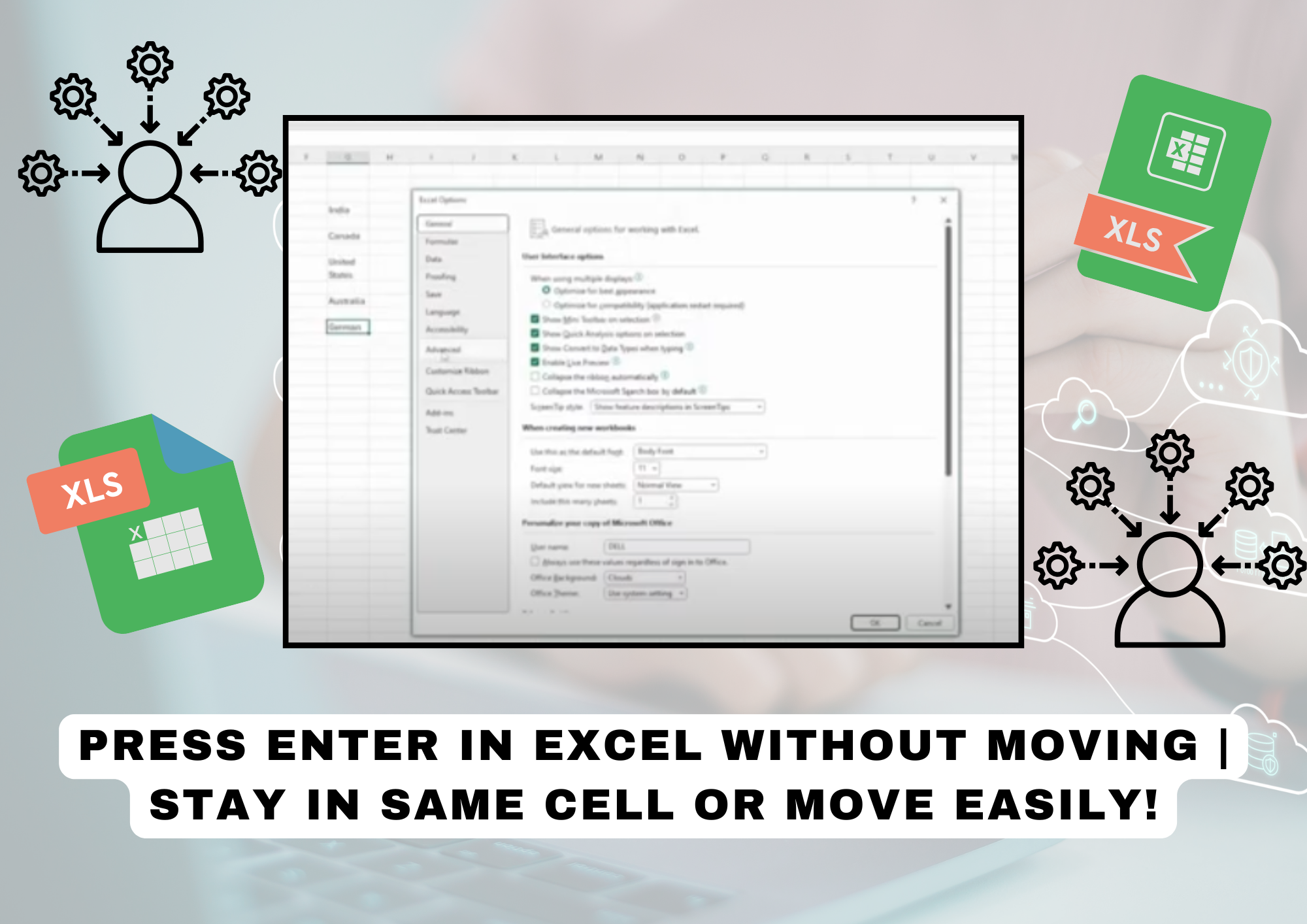
Keep the Cursor in the Same Cell After Pressing ENTER By default, pressing Enter moves the cursor to the next cell. To stay in the same cell: 1️⃣ Go to File > Options.2️⃣ Click on Advanced.3️⃣ Find “After pressing Enter, move selection”.4️⃣ Uncheck the...
by admin | Mar 20, 2025 | Excel Tips & Tricks
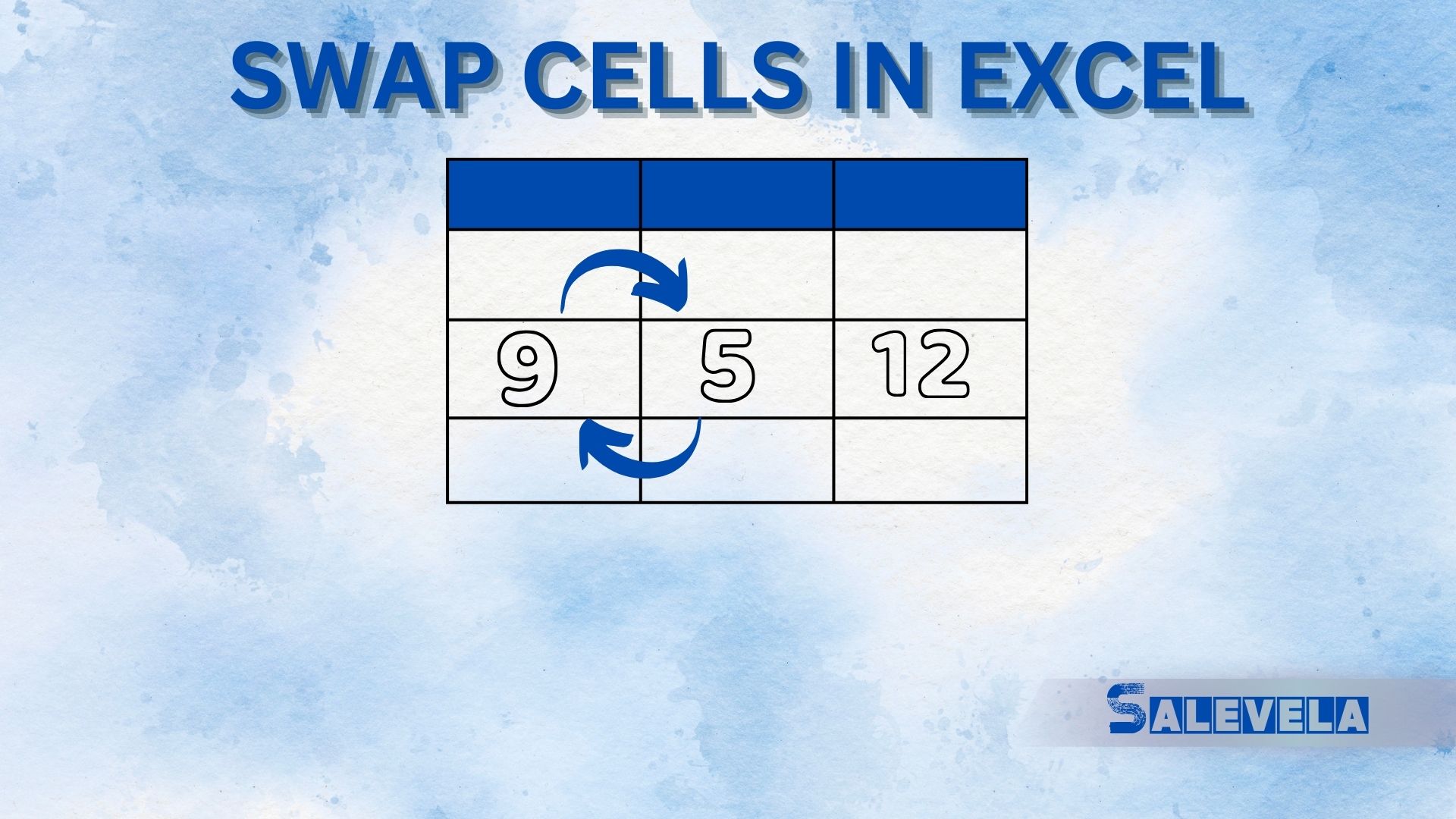
🔄 Swap Cells in Excel Like a Pro! Swapping cells in Excel helps rearrange data quickly. Here’s how to do it: 1️⃣ Drag & Drop Method (Best for Adjacent Cells) Select the cell you want to move. Hover over the cell border until the cursor changes to a four-way arrow...

by admin | Mar 19, 2025 | Excel Tips & Tricks
📌 Follow these steps to generate barcodes in Excel easily: 1️⃣ Enter Your Data Create columns: Product, Variant, ID, and Barcode. In the Barcode column, enter the formula:=”*”&C1&”*” (Assuming column C contains the product ID) 2️⃣...

by admin | Mar 18, 2025 | Excel Tips & Tricks
1️⃣ Data from Picture 📸 Convert handwritten or printed tables into editable Excel data. Use Insert > Data from Picture to capture tables from images. Saves time by eliminating manual data entry! 2️⃣ Picture in Cell 🖼️ Insert images directly inside cells instead of...
by admin | Mar 17, 2025 | Excel Tips & Tricks
Steps to Calculate Expiry Date Using EDATE Formula: If you have: Packaging Date in A2 Before Months (shelf life) in B2 Use the formula: =EDATE(A2, B2) How It Works: A2 is the packaging date. B2 is the number of months before expiry. The formula calculates the expiry...
by admin | Mar 15, 2025 | Excel Tips & Tricks
Steps Using Quick Analysis Tool: Select the Data Highlight the Obtained Marks (B2:B4) along with Total Marks (A2:A4). Open Quick Analysis Tool Look for the small Quick Analysis button at the bottom-right of the selection. OR, press Ctrl + Q to open the Quick Analysis...