
Table of Contents
1. Use the WordPress Customizer
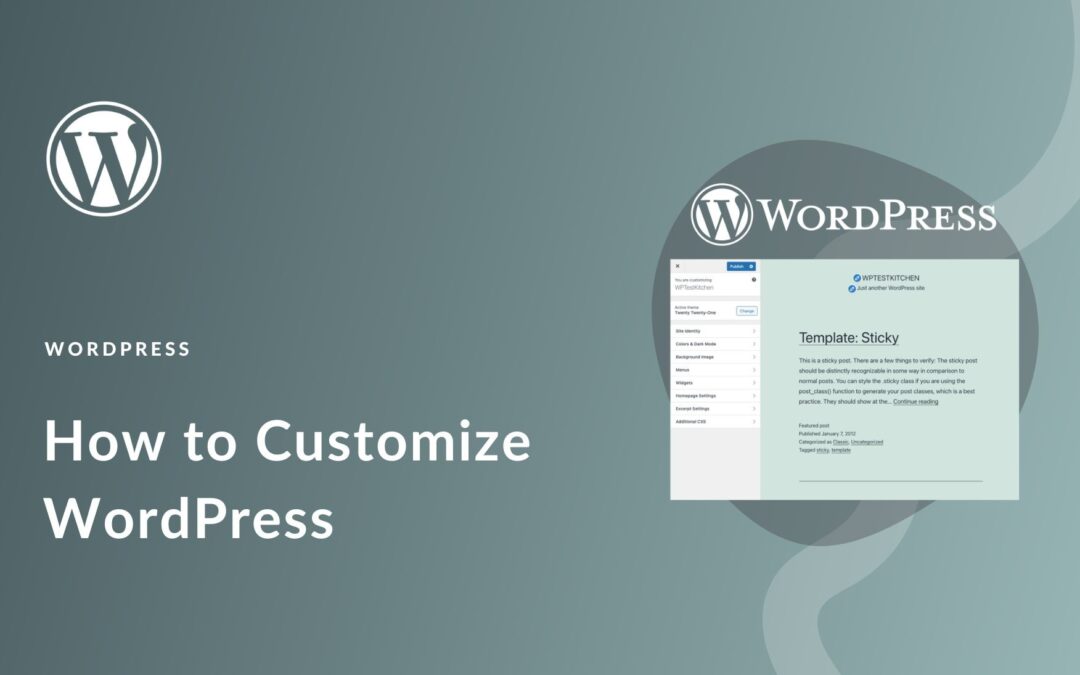
The WordPress Customizer was the built-in tool that permit you to make out visual changes to the website in real time.
- You could access it by going to Appearance → Customize.
- It permit you to change logo, site title, tagline, background images, colors, and fonts.
- You could preview changes live before published them.
- Numerous themes offered extra customization alternatives inside the Customizer.
This tool was beginner-friendly and does not needed any type of technical knowledge.
2. Choose the Right Theme
Themes control the overall layout and look of the website.
- WordPress offered thousands of free themes in Appearance → Themes.
- Premium themes offered advanced customization alternatives like demo imports, custom layouts, and typography controls.
- Select the theme that match up the website’s purpose (business, blog, eCommerce or portfolio).
- Many modern themes were flexible and worked well with the page builders.
A good theme lessened the need for heavier customization later.
3. Use Page Builders
Page builders let you designed pages utilizing drag-and-drop tools.
- Popular page builders include WPBakery, Elementor, Beaver Builder, and Divi.
- You could created custom layouts without touching code.
- Page builders provided ready-made widgets like sliders, buttons, testimonials, images, and forms.
- You could adjusted spacing, alignment, colors, and fonts visually.
Page builders were ideal for developing landing pages and customized homepage designs.
4. Install Plugins for Extra Features
Plugins extended WordPress functionality without coding.
- You could install plugins from Plugins → Add New.
- Plugins were accessible for SEO, security, backups, social sharing, forms, and caching.
- Examples involved popup builders, contact form plugins, and image optimization tools.
- Most plugins came with easier-to-usage settings panels.
By utilizing plugins, you could add on powerful features in just a few clicks.
5. Customize Menus and Navigation
Menus support visitors navigate the website.
- Go to Appearance → Menus to created and managed menus.
- You could add on pages, custom links, posts, and categories.
- Drag and drop menu items to rearranged them.
- Assigned menus to various locations like sidebar, header, or footer.
Well-organized menus improved user website usability and experience.
6. Use Widgets for Sidebars and Footers
Widgets permit you to add on content blocks to particular zones.
- Go to Appearance → Widgets.
- Widgets could be added to footers, sidebars, and other widget-ready zones.
- Common widgets include search bars, recent posts, social icons, categories, and calendars.
- You could easily reorder or removed widgets utilizing drag-and-drop.
Widgets were an easier manner to enhance the site layout without coding.
7. Customize Content Using the Block Editor
WordPress usage the Gutenberg Block Editor to created content.
- Each chunk of content (text, image, video, button) was a block.
- You could add on galleries, columns, spacers, and buttons easily.
- Blocks comes up with built-in style alternative like font size, colors, and alignment.
- Reusable blocks help maintain consistency across pages.
This editor makes content creation visually and flexible appealing.
8. Use Ready-Made Templates and Demo Content
Many page builders and themes offered pre-designed templates.
- Templates help you created pages fast way.
- You could imported demo content and replaced images and text with your own.
- This saves timing and certains professional design.
- Templates were accessible for contact pages, homepages, and about pages.
Using templates is ideal for beginners who wanted quick results.
9. Customized Fonts and Colors Visually
Typography and colors defined the brand identity.
- Many themes permit color and font changes via the Customizer.
- Page builders provided advanced typography controls.
- You could adjusting font colors, size, style, and spacing visually.
- No CSS editing was required.
Consistent colors and fonts improved website appearance.
10. Use eCommerce Plugins for Online Stores
You could build the online store without coding.
- WooCommerce was the most famous eCommerce plugin.
- It permits you to add on products, managed payments, and customized layouts.
- WooCommerce plugins and themes offered visual customization options.
- You could managed everything from an WordPress dashboard.
This makes WordPress comfy for business owners and beginners.


